Checkouts have been rebuilt as their own module. A checkout is now one page that takes payment for anything you sell on Vonza, written for you by Vonza AI or started from a template, with its own prices, offers, payment methods and sales list. This post walks through what changed and links to the pages that explain each part in full.
Create a checkout with Vonza AI
Open Checkouts, click New checkout and give it a name. Then choose how to begin. Create with Vonza AI asks one question, "What are you selling?", and takes an optional price, a look and feel ("dark and premium", "calm and natural") and a tone: Friendly, Professional, Bold or Calm.
Vonza AI then writes the page and designs a look made for it, usually in 10 to 20 seconds:
- a headline, a subheadline and up to 8 short bullets
- the button text and the thank-you note shown after payment
- the layout, art, colours and fonts
- your prices, just as you typed them
- a guarantee, only if you mentioned one
Do not like the look? Redesign it and keep the words, or write the page again. Creating with Vonza AI uses AI credits; if a write fails, nothing is charged and your brief is kept.
15 templates in three layouts
Prefer to write it yourself? Start with a template is free. There are 15 looks, from Editorial and Soft to Obsidian, Aurora Glass and Neon Grid, and five that also rearrange the page: Sunset puts a colour banner on top, Mint centres one card for phones, and Cherry, Prism and Midnight set the details and the payment side by side.
A template never changes your words, prices or images, so you can switch at any time. On top of the template you choose one of three layouts (Side by side, Single column or Wide cover), a cover image or video (upload one, or paste a YouTube or Vimeo link), your colour, the button text and an optional money-back guarantee line. Edit on the page itself, clicking any text to change it, or use the side panel. Everything saves as you go.
See every part of the page on the checkout page builder.
Sell anything from one link
A checkout sells one item from any part of Vonza: a course (buyers are enrolled the moment they pay), a product, a membership tier, a bundle of courses or a community. Or attach nothing at all and use the page for a service, a coaching package or a deposit you deliver yourself. "Change what you sell" swaps the item in place and keeps your wording and look.
Every checkout gets its own link, yoursite/ch/your-checkout-name, made from its name, and the link works on your custom domain too.
Six ways to price
A checkout can hold up to 6 prices, each one of six types:
- One-time payment: the buyer pays once.
- Recurring: the same amount every day, week, month or year, for a set number of payments or until the buyer cancels.
- Instalments: a first payment today, then the rest over time, from 1 to 120 payments, or each payment typed by hand.
- Pay what you want: the buyer types the amount, with an optional minimum and maximum.
- Flexible: some today, the rest at the buyer’s own pace.
- Free: no payment, buyers just sign up.
Selling a course? The course pricing options page covers the plans a course can sell with.
Up to 5 order bumps
Switch on "Show bump offers at checkout" and add up to 5 extras that buyers tick before paying. Each bump is either something you sell, given to the buyer the moment they pay, or a custom line you deliver yourself, with a title, an optional picture, one line on why it is worth it, a price, optional shipping and a "Ticked by default" setting.
Read how they work on the order bumps page, or get ideas from these order bump examples.
One more offer, one click
After payment, a checkout can "Offer one more thing": one item or a custom line at one one-time price, with your own button text. A buyer who paid by card through Stripe, or with Paystack, takes it with one click on the card they just used. If the card is declined, the page says so and shows the payment form. The offer is never shown for something the buyer already owns.
The one-click upsell page explains the rules, and how funnels add a downsell when the offer is declined. For when to cross-sell and when to upsell, read upselling and cross-selling, explained.
Payment methods, per checkout
Each checkout has a switch for every payment method: card, Apple Pay, Google Pay, Klarna, PayPal and Paystack. Payments go through the Stripe, PayPal or Paystack account you connect. A method your account cannot take is greyed out with the reason, and buyers only see the methods their device supports. Two limits to know: PayPal is for one-time payments, and Paystack is for sellers in Naira. Prices are in your account’s currency, which you set once in your settings.
After payment
Choose what buyers see once they have paid: a confirmation page with what they bought and a button to open it, your own message, or your own link. Every buyer gets a receipt email, and orders with bumps send an itemised email to the buyer and to you.
Sales and customers for each checkout
Inside each checkout, Sales lists every payment with the buyer, amount, status, price, method and date, filtered by all, paid or failed. Customers lists each buyer with their purchases, total spent and first and last purchase.
Where to start
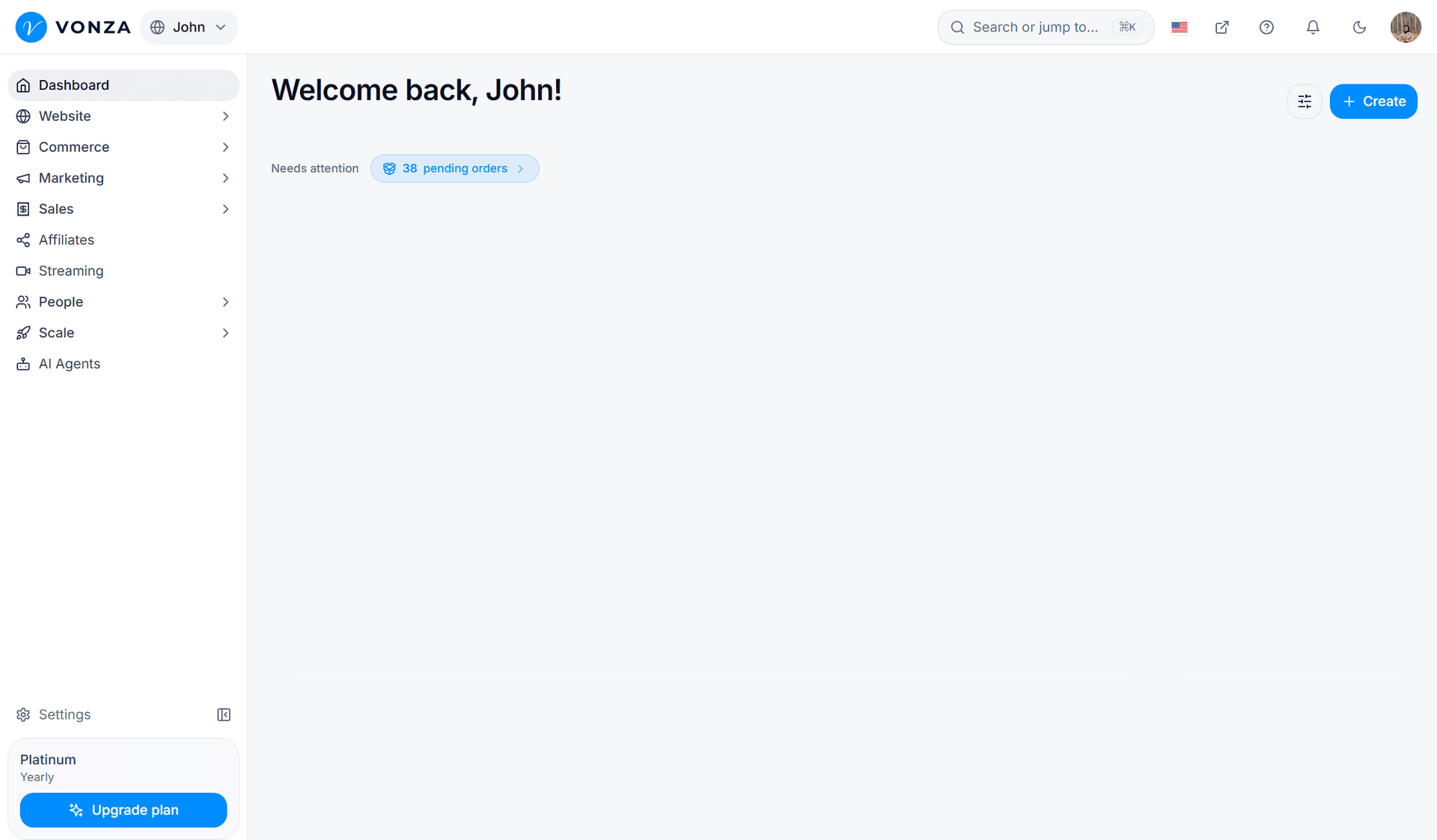
Open Checkouts in your dashboard and click New checkout. New to Vonza? Start a 14-day free trial, build your first checkout and connect Stripe before you sell.