To take payments with an online form, add a payment step to the form, set a price, connect a payment account and publish. The buyer answers your questions and pays in the same flow, and you get the answers and the payment together. This guide covers every part of a Vonza payment form: the price types, add-ons, discount codes, extra fees, payment methods and what happens after someone pays.
Why take payments on a form
A checkout page suits one product with a fixed price. A form suits a sale where you need answers too:
- a cake or meal box order with flavours, sizes and a delivery date
- a class, camp or race registration with a participant's details
- a photo session booking with a deposit
- a donation with a gift message
- a membership application with a monthly fee
Vonza has templates for many of these, such as Custom cake order, Concert tickets, Meal box order, Photo session booking and Merch store, in the form templates gallery.
Step 1: Connect a payment account
Payments go through the Stripe, PayPal or Paystack account you connect in your payment settings. The form editor tells you if nothing is connected yet ("Connect Stripe or PayPal to accept payments"). Prices are in your account's currency, which you set once for the account. Which one to choose? Read Stripe vs PayPal vs Paystack.
Step 2: Add a payment step and choose a price type
Insert Payment in the editor and pick a price type. A form can offer up to 10 prices, and buyers choose one.
- One-Time Purchase: pay once.
- Subscription Plan: the same amount weekly, monthly or yearly until the buyer cancels.
- Recurring Payment: the same amount for a set number of payments.
- Installment Plan: the total split into several payments.
- Flexible Payment: some today, the rest later.
- Pay What You Want: the buyer chooses the amount, with optional minimum, maximum and suggested amounts. Good for donations.
- Free: no payment, for a free option next to paid ones.
Installment and Flexible prices are available on eligible plans. For more on plans and when each one suits, see payment plans for online courses; the same ideas apply to any sale.
Step 3: Add quantity or a product list
Selling more than one of something? A Quantity question multiplies the price, and a Product list shows up to 30 products with their prices, so the buyer picks what and how many.
Step 4: Offer add-ons
Add up to 5 add-ons next to the pay button: "An extra people can tick next to the pay button — a course, a product, or something you deliver yourself." Each add-on can have a was-price, a badge, a picture and be ticked by default. When an add-on is a Vonza course, product, community, bundle or membership, the buyer gets it when they pay. It is the same idea as order bumps on a checkout; see these order bump examples for ideas.
Step 5: Discount codes
Switch on Show a code box at checkout and buyers can enter a code. Codes are your account's coupons: a percentage or a fixed amount off, with an optional limit on total uses and an end date. Here is how to create a coupon code.
Step 6: Shipping, fees and tips
Add one extra line to the order: Shipping, a Processing fee, a Service charge or Add a tip. Choose whether it is Always added to every order, or whether the Buyer chooses, ticking it and setting the amount, which suits a tip.
Step 7: Choose payment methods
Buyers can pay by:
- card, Apple Pay, Google Pay and Klarna, through Stripe. Wallets only show when the buyer's device and browser support them.
- PayPal, for one-time payments.
- Paystack, for sellers in Nigerian naira.
Step 8: Receipt and publish
Switch on Email a receipt after payment, add a note to the receipt if you like, and set your own pay button text. Then publish. Vonza checks the form first: a paid form needs an email question and at least one payment method switched on.
After someone pays
- Responses and Sales: responses show tabs for Paid, Awaiting payment and Payment failed. The Sales tab lists every sale with the buyer, items, amount and status, and exports to CSV.
- Recurring payments: from a buyer's response you can pause, resume or stop their recurring payments, except for Paystack payments.
- Contacts and follow-up: every buyer who leaves an email becomes a contact in your CRM, and you can get an email for every response or only for paid ones.
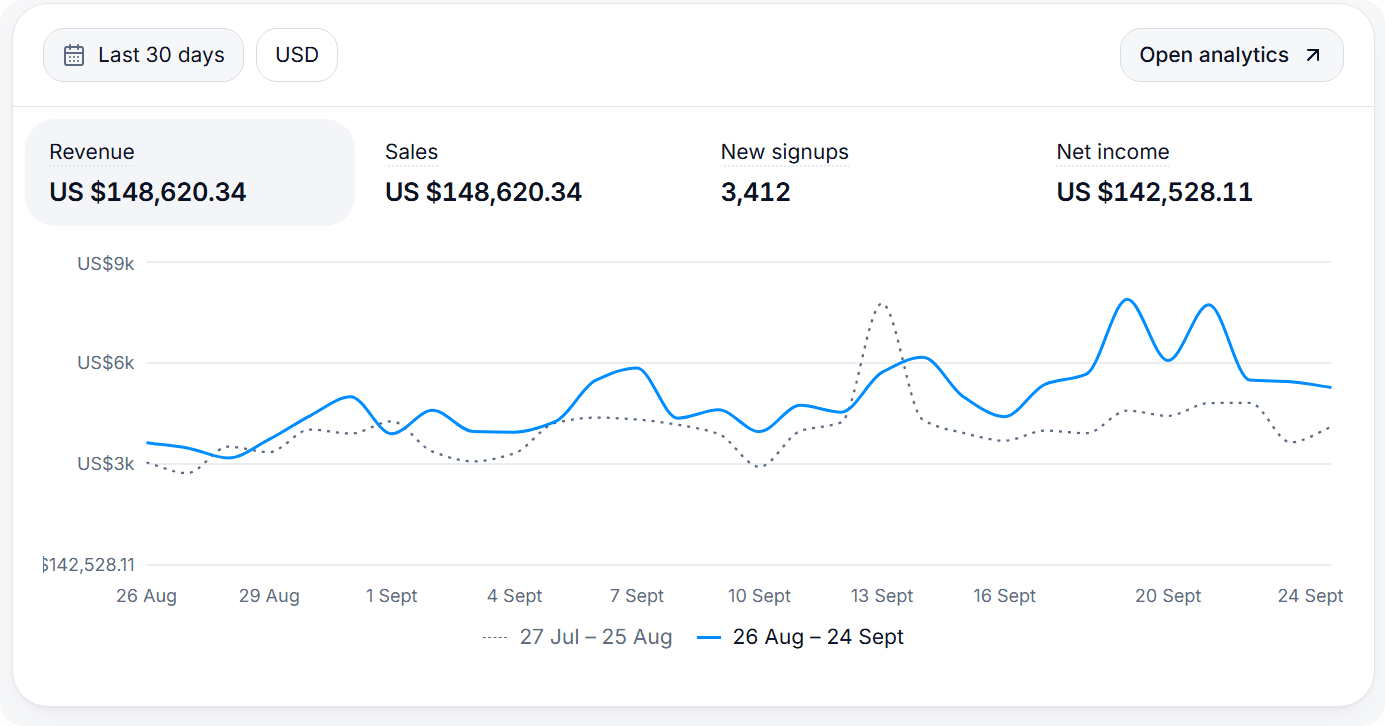
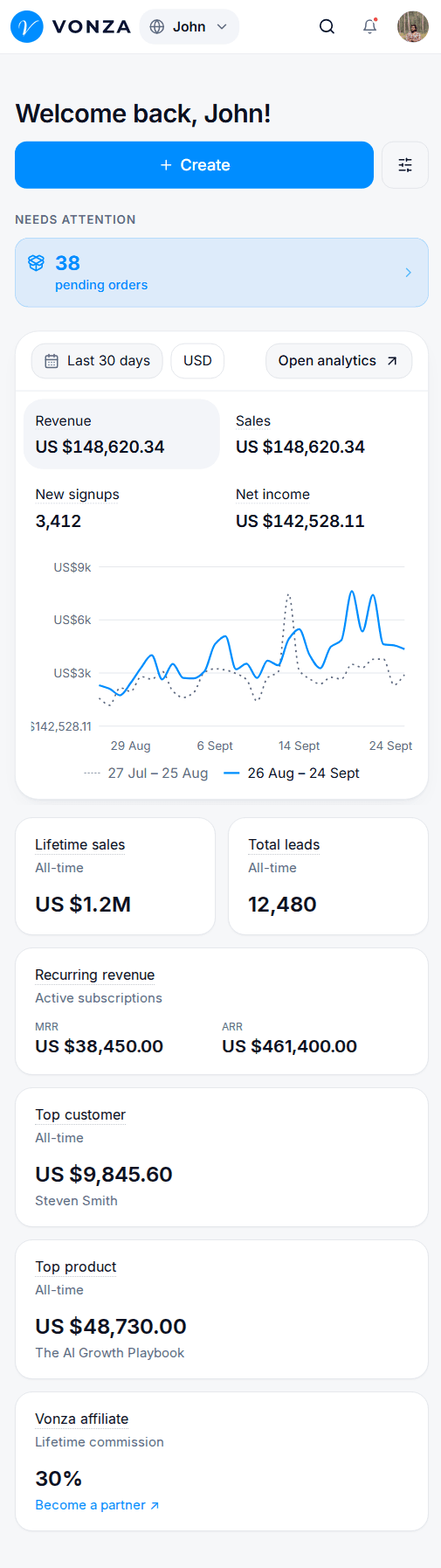
- Analytics: the form's analytics page shows revenue next to views, starts and completion rate.
Next steps
See everything on the payment forms page, or read how Vonza handles payments across your account on accept payments online. Building your first form? Start with how to create an online form.